Email Templates
Email templates help your team prepare reusable messages for common communication scenarios.
Use templates when you need to send consistent emails after form submissions, from an individual lead or contact record, or through Mass Email. Instead of rewriting the same message each time, you can create the template once and reuse it whenever needed.
Template Types
When creating a template, choose the type that matches the message you want to send.
Simpletemplates use a lightweight editor with basic formatting. They are best for personal, direct communication such as reminders, follow-ups, and admissions updates.Styledtemplates are designed for more visual, newsletter-style emails with branded layout options such as a logo. This option is coming soon.
Create an Email Template
To create a new template:
- Open the Email Templates view.
- Click Create.
- Enter a clear template name and description.
- Select the template type.
- Click the newly created template in the table to open the editor.
Use a name that makes the template easy for your team to recognize, such as Open Day Follow-up or Missing Documents Reminder. The description should explain when the template should be used.

Edit Template Details
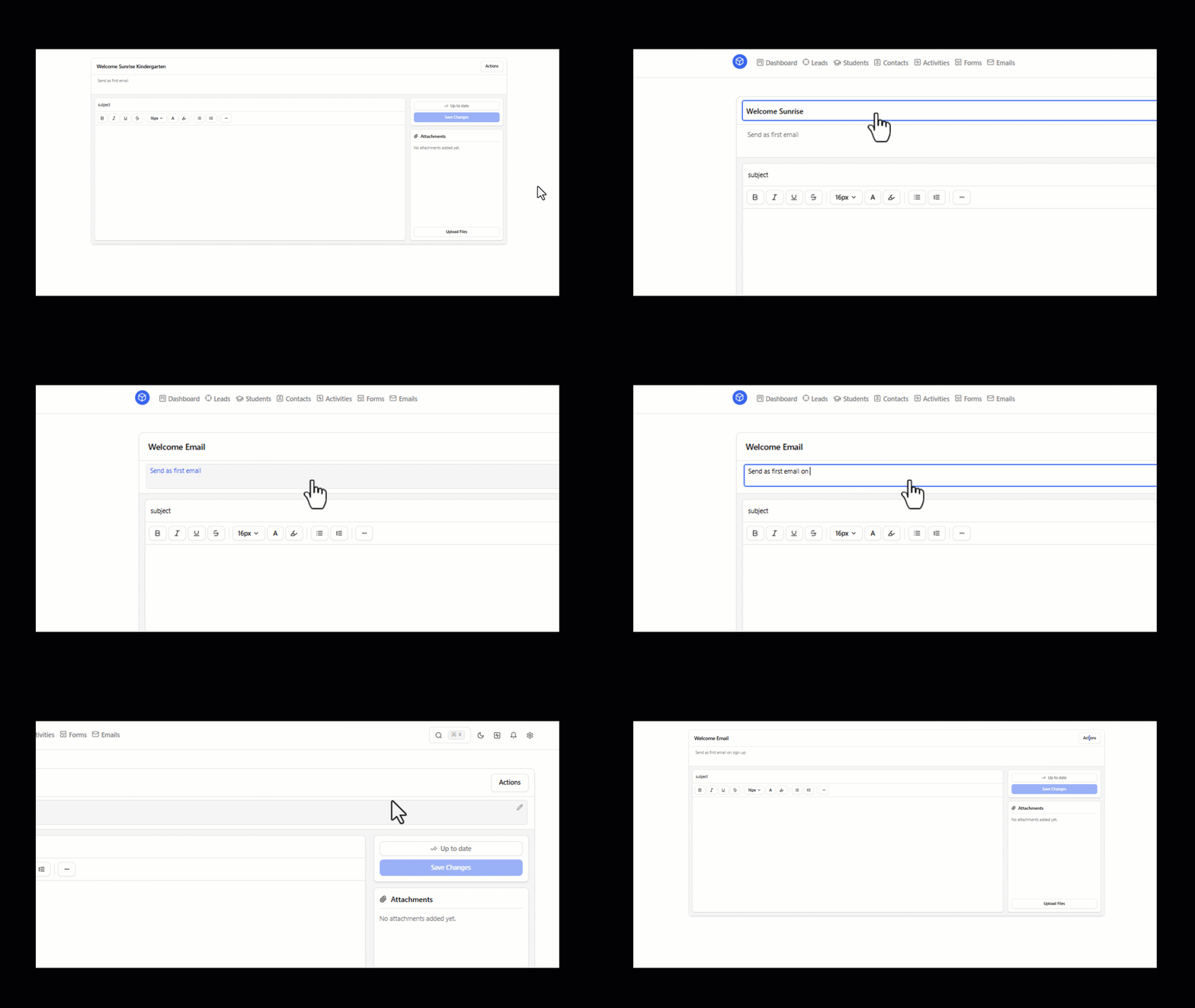
At the top of the template editor, you can update the template name and description at any time.
You can also open Actions to duplicate or delete the template. Duplicating is useful when you want to create a similar email without starting from an empty template.
Compose a Simple Email
For a simple email template, add the email subject and body in the editor.
The editor supports basic formatting options:
- bold
- italic
- underline
- text size
- text color
- highlight
Keep the message clear and reusable. Avoid adding details that only apply to one recipient unless you use a placeholder for that information.
Use Placeholders
Placeholders allow each recipient to receive a personalized version of the same template.
A placeholder represents data stored in evvo, such as a lead, contact, or student field. When the email is sent, evvo automatically replaces the placeholder with the matching value for the recipient.
For example, you can add placeholders for names, program details, or other available fields instead of typing those values manually.
Before sending an email that uses placeholders, review the message to make sure the sentence still reads naturally after the recipient data is inserted.
Add Attachments
Email templates support attachments.
Use attachments for files that should be included every time the template is sent, such as brochures, checklists, or information sheets. If an attachment is only needed for one specific email, add it when composing that individual email instead of saving it to the template.
Save Changes
Template changes are not saved automatically.
Click Save changes regularly while editing. If the template has unsaved changes, an indicator appears to remind you that the current version is different from the last saved version.